MCP Server for Developers
View as MarkdownMaterialize provides a built-in materialize-developer Model Context Protocol
(MCP) server (/api/mcp/developer, port 6876) for troubleshooting and
observability. The server is provided directly by Materialize; no sidecar
process or external server is required.
Overview
The materialize-developer MCP server provides read-only access to the system
catalog (mz_* tables). You can connect an MCP-compatible client (such as
Claude Code, Claude Desktop, or Cursor) to the MCP server and ask natural
language questions like:
- Why is my materialized view stale?
- How much memory is my cluster using?
Connect to the MCP server
Step 1. Get connection details
When connecting to the MCP server, the MCP-compatible client needs:
-
The Base64-encoded
user:passwordcredentials (i.e., the MCP token). -
The
materialize-developerMCP server URL:<baseURL>/api/mcp/developer.
-
Log in to the Materialize Console.
-
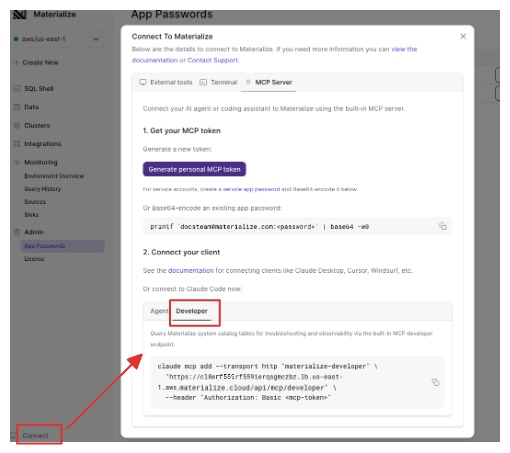
Click the Connect link (lower-left corner) to open the Connect modal and click on the MCP Server tab.
-
To get your base64-encoded token:
-
If you want to create a new personal app password to use, click on the Generate personal MCP token to generate a new personal app token for the MCP Server. Copy the token as you will use the token to connect. Once you navigate away, the token will not display again.
-
If using an existing personal app password, manually generate the base64-encoded token.
printf '<user>:<app_password>' | base64 -w0
-
-
In the Connect your client section, click on the Developer tab.
You can find your
materialize-developerMCP server URL<baseURL>/api/mcp/developeras part of the code block.If using Claude Code as your MCP-compatible client, you can copy the code block wholesale for the next step.
-
You can connect using either an existing or new login role with password.
-
To use an existing login role with password, go to the next step.
-
To create a new login role with password:
CREATE ROLE my_dev_agent LOGIN PASSWORD '<your_app_password>';
-
-
Encode your role’s credentials
<role>:<password>in Base64 to create the MCP token, replacing<your_app_password>with the actual password:printf 'my_dev_agent:<your_app_password>' | base64 -
Find your deployment’s host name to determine your
materialize-developerMCP URL:http://<host>:6876/api/mcp/developer-
For your Self-Managed Materialize deployment in AWS/GCP/Azure, the
<host>is the load balancer address. If deployed viaTerraform,run the Terraform output command for your cloud provider:# AWS terraform output -raw nlb_dns_name # GCP terraform output -raw balancerd_load_balancer_ip # Azure terraform output -raw balancerd_load_balancer_ip -
For local kind clusters, use port forwarding and use
localhostfor<host>:kubectl port-forward svc/<instance-name>-balancerd 6876:6876 -n materialize-environment
-
To connect to the MCP server for your Emulator, you can create a role for your
specific AI agent or use the default materialize user:
-
You can create a role for your specific AI agent (the Emulator does not support the
LOGIN PASSWORDoption):CREATE ROLE my_dev_agent; -
Encode your agent role’s credentials
<role>:<password>in Base64 to create the MCP token (the Emulator does not support passwords):printf 'my_dev_agent:' | base64 -
For the Emulator, you will use
http://localhost:6876as the<baseURL>portion of the MCP URL:<baseURL>/api/mcp/developer
Step 2. Configure your MCP client
-
Add the
materialize-developerMCP server as local-scoped server (i.e., the configurations are stored in~/.claude.json):claude mcp add --transport http materialize-developer \ <baseURL>/api/mcp/developer \ --header "Authorization: Basic <mcp-token>"Update the
<baseURL>and<mcp-token>placeholders with your values:Deployment <baseURL><mcp-token>Cloud Replace with your value (format: https://<region-id>.materialize.cloud)Replace with your value Self-Managed Replace with your value (format: http://<host>:6876)Replace with your value Emulator http://localhost:6876Replace with your value 💡 Tip: For Cloud, you can get the full MCP URL directly from the Console’s Connect modal. -
Restart Claude Code to pick up the new setting.
-
Add the
materialize-developerMCP server entry to your Claude Desktop configuration (claude_desktop_config.json).- When merging into an existing
mcpServersobject, remember to add commas between entries. - If the
mcpServersfield does not already exist, add it as well. - For older Claude Desktop versions, you may need to include the transport
"type": "http",as well as part of thematerialize-developerentry.
{
  "mcpServers": {
    "materialize-developer": {
      "url": "<baseURL>/api/mcp/developer",
      "headers": {
        "Authorization": "Basic <mcp-token>"
      }
    }
  }
}
Update the
<baseURL>and<mcp-token>placeholders with your values:Deployment <baseURL><mcp-token>Cloud Replace with your value (format: https://<region-id>.materialize.cloud)Replace with your value Self-Managed Replace with your value (format: http://<host>:6876)Replace with your value Emulator http://localhost:6876Replace with your value 💡 Tip: For Cloud, you can get the full MCP URL directly from the Console’s Connect modal. - When merging into an existing
-
Restart Claude Desktop to pick up the new setting.
-
Add the
materialize-developerMCP server entry to your local MCP settings file (~/.cursor/mcp.json).- When merging into an existing
mcpServersobject, remember to add commas between entries. - If the
mcpServersfield does not already exist, add it as well.
{
  "mcpServers": {
    "materialize-developer": {
      "url": "<baseURL>/api/mcp/developer",
      "headers": {
        "Authorization": "Basic <mcp-token>"
      }
    }
  }
}
Update the
<baseURL>and<mcp-token>placeholders with your values:Deployment <baseURL><mcp-token>Cloud Replace with your value (format: https://<region-id>.materialize.cloud)Replace with your value Self-Managed Replace with your value (format: http://<host>:6876)Replace with your value Emulator http://localhost:6876Replace with your value 💡 Tip: For Cloud, you can get the full MCP URL directly from the Console’s Connect modal. - When merging into an existing
-
Restart Cursor to pick up the new setting.
Any MCP-compatible client can connect by sending JSON-RPC 2.0 requests; update
the <baseURL> and <mcp-token> placeholders with your values:
curl -X POST <baseURL>/api/mcp/developer \
  -H "Content-Type: application/json" \
  -H "Authorization: Basic <mcp-token>" \
  -d '{
    "jsonrpc": "2.0",
    "id": 1,
    "method": "tools/list"
  }'
Start asking questions
Once connected to the MCP server, you can ask natural language questions like:
| Question | What the agent does |
|---|---|
| Why is my materialized view stale? | Checks materialization lag, hydration status, replica health, and source errors. |
| Why is my cluster running out of memory? | Checks replica utilization, identifies the largest dataflows, and finds optimization opportunities via the built-in index advisor. |
| Has my source finished snapshotting yet? | Checks source statistics and status. |
| How much memory is my cluster using? | Checks replica utilization metrics across all clusters. |
| What’s the health of my environment? | Checks replica statuses, source and sink health, and resource utilization. |
| What can I optimize to save costs? | Queries the index advisor for materialized views that can be dematerialized and indexes that can be dropped. |
The agent translates natural language questions into the appropriate system
catalog queries, uses the query_system_catalog
tool to run
those queries, and synthesizes the results.
Privileges
The privileges required to use the materialize-developer MCP server are:
-
USAGEon system catalog schemas andSELECTon system catalog objects. These privileges are granted by default. -
If agents also need access to replica-specific metrics from
mz_introspection,USAGEprivileges on the corresponding cluster.