MCP Server for Developers
View as MarkdownMaterialize provides a built-in Model Context Protocol (MCP) endpoint
/api/mcp/developer (port 6876) for troubleshooting and observability. The MCP
interface is served directly by the database; no sidecar process or external
server is required.
Overview
The /api/mcp/developer endpoint provides read-only access to the system
catalog (mz_* tables). You can connect an MCP-compatible AI agent (such as
Claude Code, Claude Desktop, or Cursor) to the /api/mcp/developer endpoint and
ask natural language questions like:
- Why is my materialized view stale?
- How much memory is my cluster using?.
Connect to the MCP server
Step 1. Get connection details
-
Log in to the Materialize Console.
-
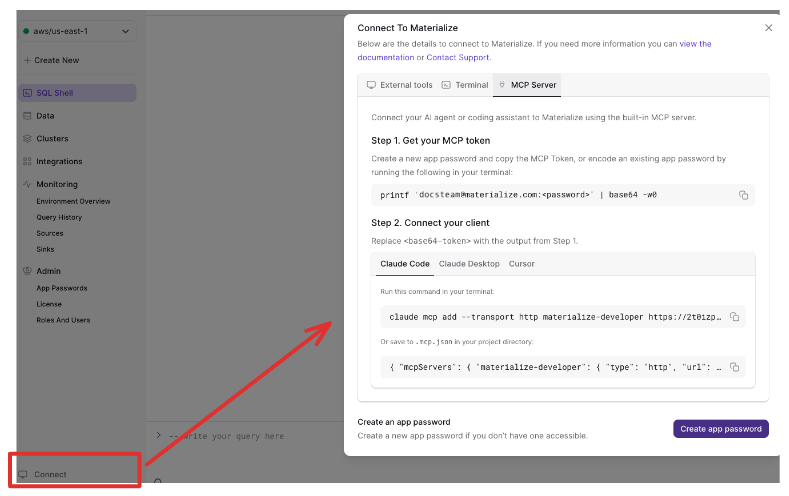
Click the Connect link (lower-left corner) to open the Connect modal and click on the MCP Server tab.
-
To get your base64-encoded token:
-
To use an existing app password, generate a base64-encoded token. MCP clients send credentials as a Base64-encoded
user:passwordstring.printf '<user>:<app_password>' | base64 -w0 -
To create a new app password to use, click on the Create app password to generate a new app password and token for MCP Server. Copy the app password and token.
-
-
You can connect using either an existing or new login role with password.
-
To use an existing role, go to the next step.
-
To create a new login role with password:
CREATE ROLE my_agent LOGIN PASSWORD 'your_password_here';
-
-
Encode your credentials in Base64. MCP clients send credentials as a Base64-encoded
user:passwordstring.printf '<user>:<password>' | base64 -w0For example:
printf 'svc-mcp-agent@mycompany.com:my_app_password_here' | base64 -w0 # Output: c3ZjLW1jcC1hZ2VudEBteWNvbXBhbnkuY29tOm15X2FwcF9wYXNzd29yZF9oZXJl -
Find your deployment’s host name to use in the MCP endpoint URL; that is, your MCP endpoint URL is:
http://<host>:6876/api/mcp/developer-
For your Self-Managed Materialize deployment in AWS/GCP/Azure, the
<host>is the load balancer address. If deployed via Terraform, run the Terraform output command for your cloud provider:# AWS terraform output -raw nlb_dns_name # GCP terraform output -raw balancerd_load_balancer_ip # Azure terraform output -raw balancerd_load_balancer_ip -
For local kind clusters, use port forwarding and use
localhostfor<host>:kubectl port-forward svc/<instance-name>-balancerd 6876:6876 -n materialize-environment
-
-
You do not need a Base64-encoded token for the Emulator.
-
Your MCP endpoint URL is:
http://localhost:6876/api/mcp/developer
Step 2. Configure your MCP client
For Cloud, you can copy the .json content from the MCP Server tab in the
Console’s Connect modal.
| Placeholder | Cloud | Self-managed | Emulator |
|---|---|---|---|
<baseURL> |
Already populated if copied from the Console. | http://<host>:6876 (from previous step) |
http://localhost:6876/ |
<base64-token> |
Replace with your value | Replace with your value | Can leave as-is. |
-
Create a
.mcp.jsonfile in your project directory:{ "mcpServers": { "materialize-developer": { "type": "http", "url": "<baseURL>/api/mcp/developer", "headers": { "Authorization": "Basic <base64-token>" } } } } -
Restart Claude Code to pick up the new setting.
-
Add to your Claude Desktop MCP configuration (
claude_desktop_config.json):{ "mcpServers": { "materialize-developer": { "url": "<baseURL>/api/mcp/developer", "headers": { "Authorization": "Basic <base64-token>" } } } } -
Restart Claude Desktop to pick up the new setting.
-
In Cursor’s MCP settings (
.cursor/mcp.json):"mcpServers": { "materialize-developer": { "url": "<baseURL>/api/mcp/developer", "headers": { "Authorization": "Basic <base64-token>" } } } -
Restart Cursor to pick up the new setting.
Any MCP-compatible client can connect by sending JSON-RPC 2.0 requests:
curl -X POST <baseURL>/api/mcp/developer \
  -H "Content-Type: application/json" \
  -H "Authorization: Basic <base64-token>" \
  -d '{
    "jsonrpc": "2.0",
    "id": 1,
    "method": "tools/list"
  }'
Start asking questions
Once connected, you can ask natural language questions like:
| Question | What the agent does |
|---|---|
| Why is my materialized view stale? | Checks materialization lag, hydration status, replica health, and source errors. |
| Why is my cluster running out of memory? | Checks replica utilization, identifies the largest dataflows, and finds optimization opportunities via the built-in index advisor. |
| Has my source finished snapshotting yet? | Checks source statistics and status. |
| How much memory is my cluster using? | Checks replica utilization metrics across all clusters. |
| What’s the health of my environment? | Checks replica statuses, source and sink health, and resource utilization. |
| What can I optimize to save costs? | Queries the index advisor for materialized views that can be dematerialized and indexes that can be dropped. |
The agent translates natural language questions into the appropriate system
catalog queries, uses the query_system_catalog tool to run those queries, and
synthesizes the results.
Tools
query_system_catalog
Execute a read-only SQL query restricted to system catalog tables (mz_*,
pg_catalog, information_schema).
| Parameter | Type | Required | Description |
|---|---|---|---|
sql_query |
string | Yes | SELECT, SHOW, or EXPLAIN query using only system catalog tables. |
Only one statement per call is allowed. Write operations (INSERT, UPDATE,
CREATE, etc.) are rejected.
Example response:
{
  "jsonrpc": "2.0",
  "id": 1,
  "result": {
    "content": [
      {
        "type": "text",
        "text": "[\n  [\n    \"quickstart\",\n    \"ready\"\n  ],\n  [\n    \"mcp_cluster\",\n    \"ready\"\n  ]\n]"
      }
    ],
    "isError": false
  }
}
Key system catalog tables
| Scenario | Tables |
|---|---|
| Freshness / lag | mz_internal.mz_materialization_lag, mz_internal.mz_wallclock_global_lag_recent_history, mz_internal.mz_hydration_statuses |
| Memory / resources | mz_internal.mz_cluster_replica_utilization, mz_internal.mz_cluster_replica_metrics |
| Cluster health | mz_internal.mz_cluster_replica_statuses, mz_catalog.mz_cluster_replicas |
| Source / Sink health | mz_internal.mz_source_statuses, mz_internal.mz_sink_statuses, mz_internal.mz_source_statistics |
| Object inventory | mz_catalog.mz_materialized_views, mz_catalog.mz_sources, mz_catalog.mz_sinks, mz_catalog.mz_indexes |
| Optimization | mz_internal.mz_index_advice, mz_catalog.mz_cluster_replica_sizes |
Use SHOW TABLES FROM mz_internal or SHOW TABLES FROM mz_catalog to
discover more tables.